

A capability is something your account can do, like accept Naira cards or send payouts. We turn each one on after we check your business, so some may be off when you start.

Check what is on

Open Settings > Checkouts. Each row shows one of these statuses:
  • Enabled: we turned it on. Switch it on in the same row so customers see it at checkout.
  • In review: we are reviewing your request.
  • Needs info: finish your tasks so we can review this. Click Requested on the row to see what we need.
  • Not requested: request it and we will review your account.
  • Turned off: we turned this off. You can ask us to review it again.
  • Not available: not available for your account.
For payouts, go to Balances and click Withdraw. The prompt shows where payouts stand.
Only owners and admins can request a capability. If you do not see the button, ask a teammate with admin access.

Request a payment method

1

Open Checkouts

Go to Settings > Checkouts.
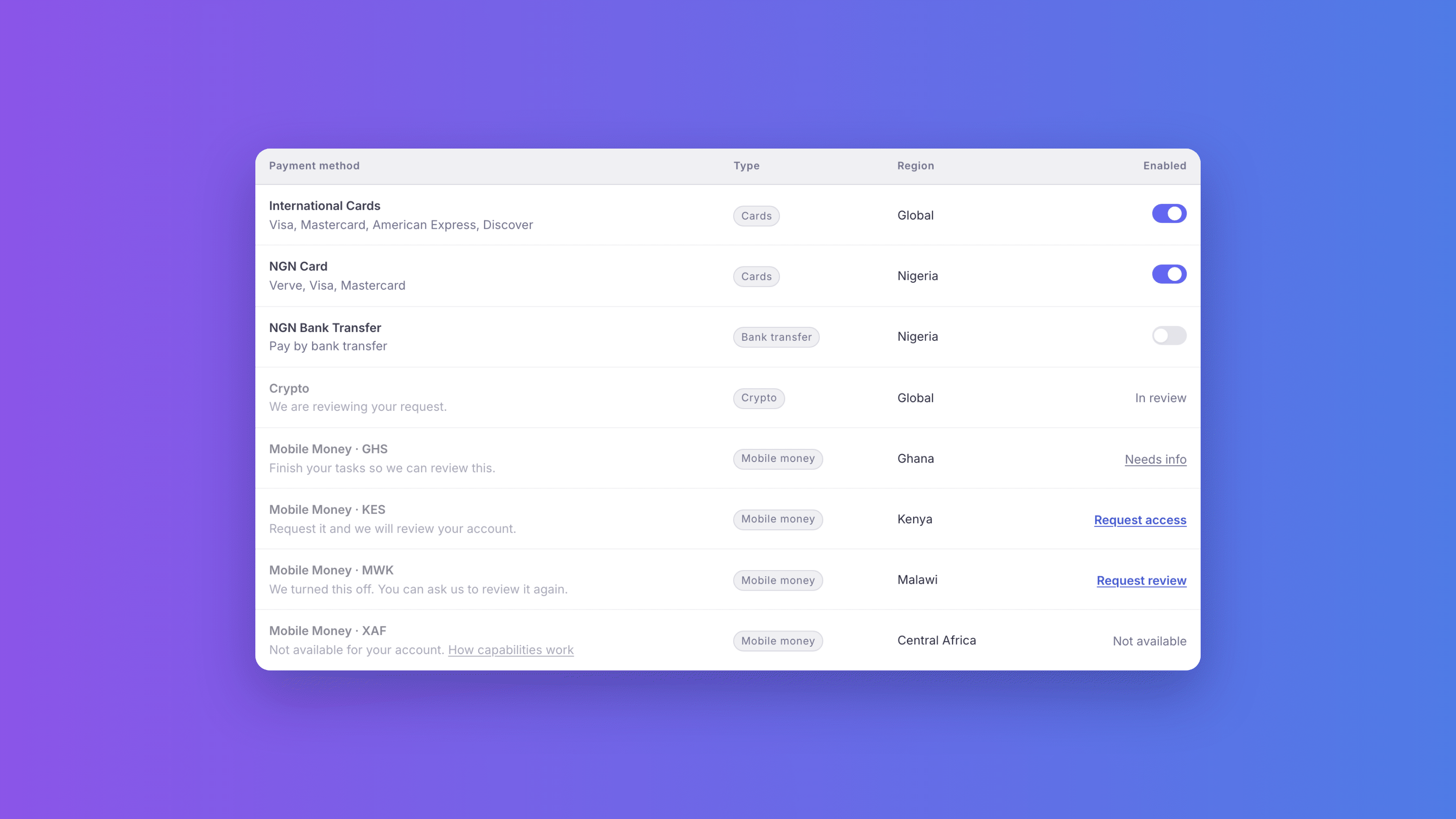
The Settings Checkouts table with a status on every payment method: Enabled, In review, Needs info, Request access, Request review and Not available
2

Find the method you want

Look for a row marked Not requested or Turned off.
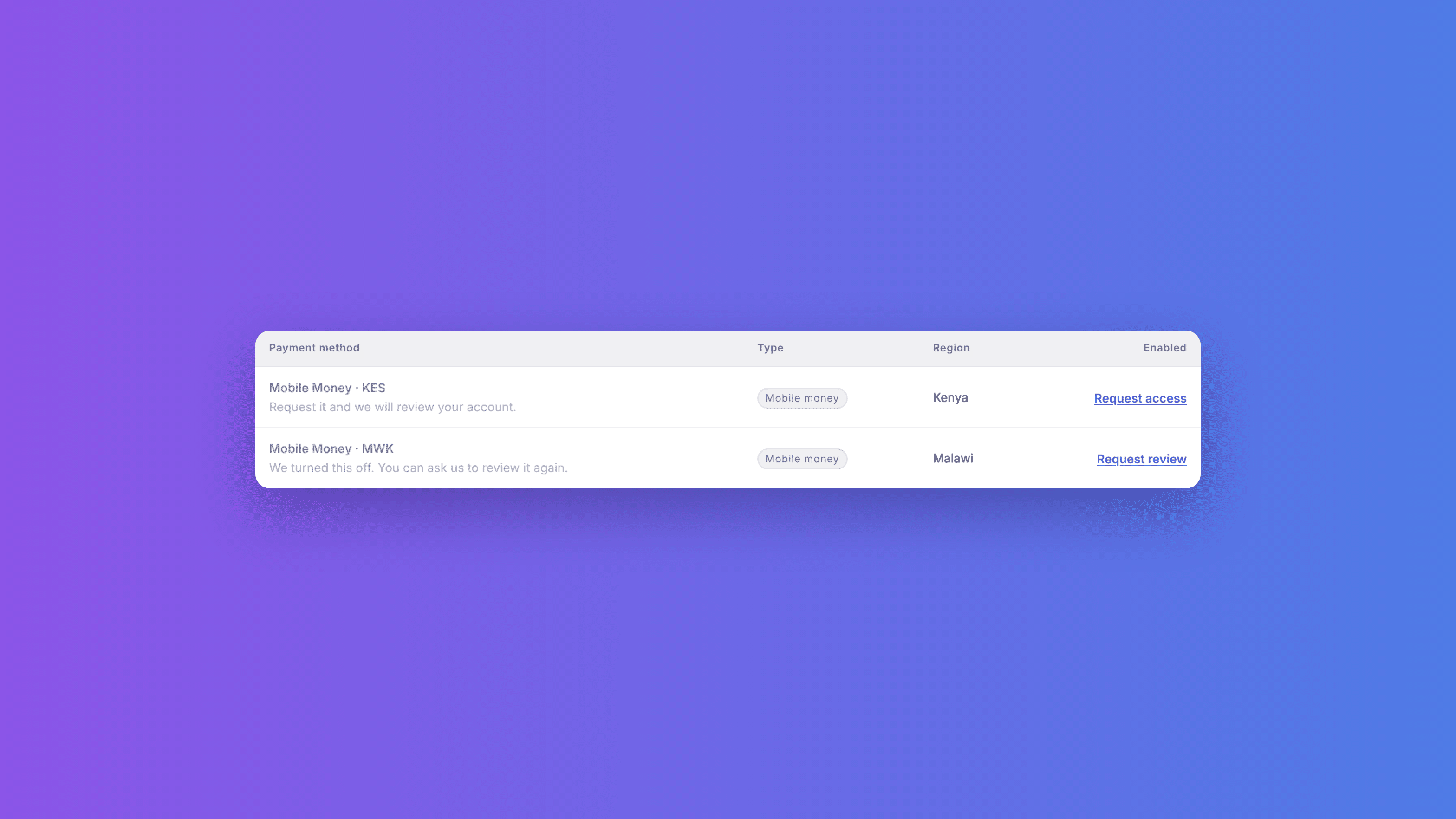
Two rows of the Checkouts table: a Not requested row with Request access and a Turned off row with Request review
3

Request it

Click Request access. On a Turned off row, click Request review.
4

Tell us why you need it

Answer any questions, add a short reason, and click Submit request.
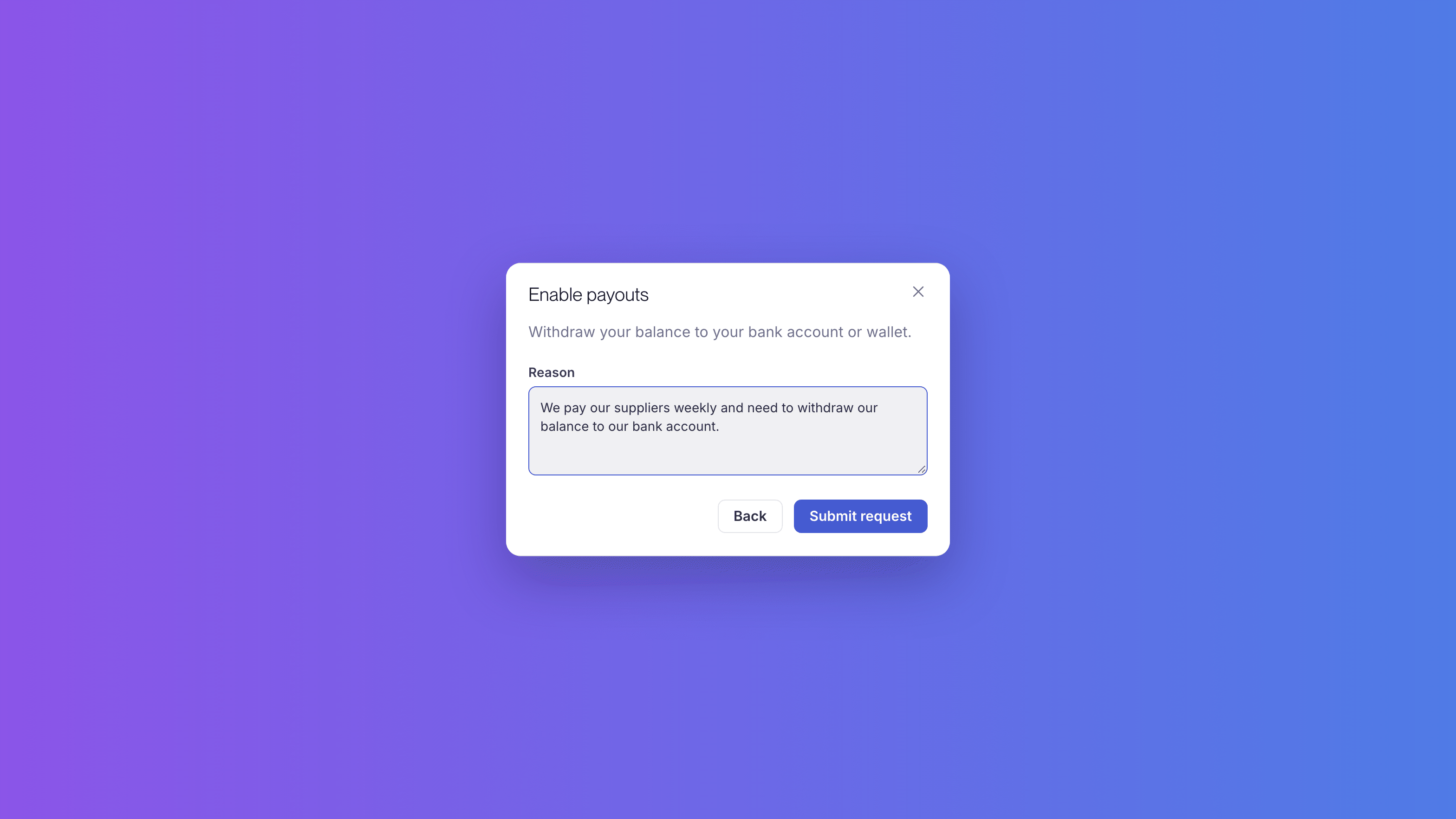
The Enable payouts request modal with a reason typed in and the Back and Submit request buttons
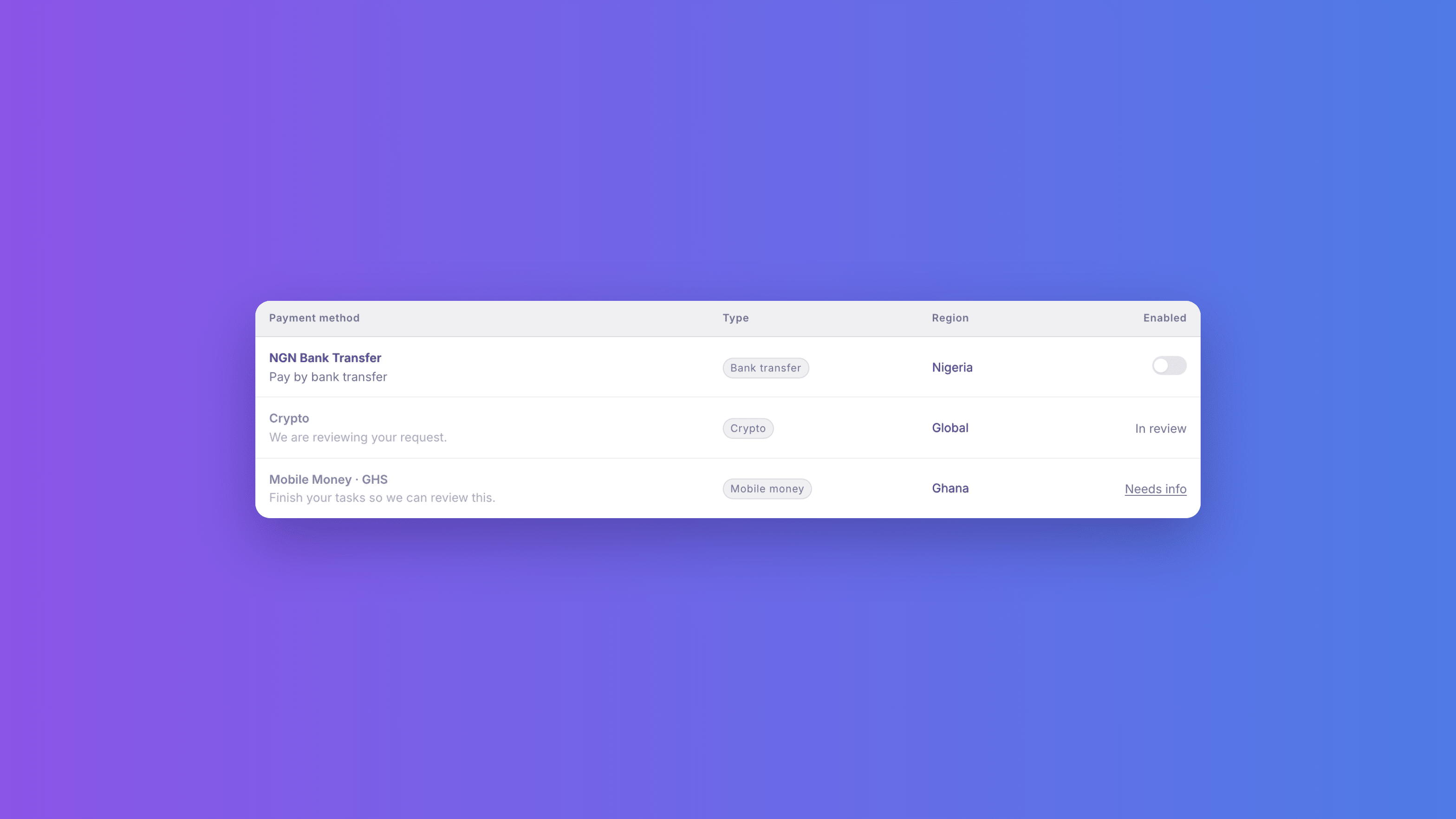
After you submit, the row changes to In review.
The Crypto row in the Checkouts table reading In review, between the NGN Bank Transfer and Mobile Money rows

Request payouts

1

Open Withdraw

Go to Balances and click Withdraw.
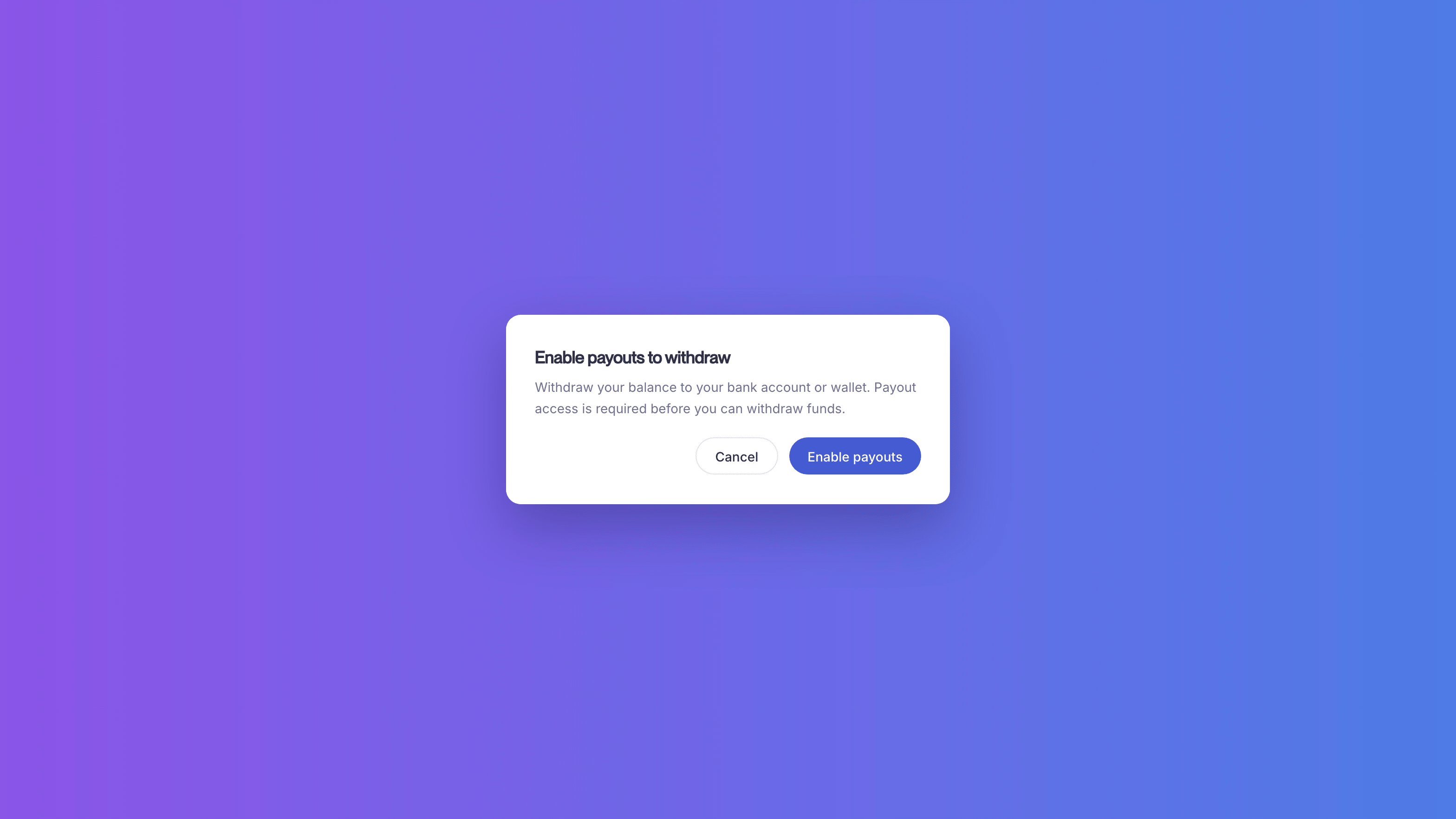
The Enable payouts to withdraw prompt on the Balance page, with Cancel and Enable payouts buttons
2

Enable payouts

Click Enable payouts.
3

Submit your request

Answer any questions, add a short reason, and click Submit request.

What happens next

We review your request. We may add a task asking about your business. It shows under Settings > Compliance. Finish it so we can continue.
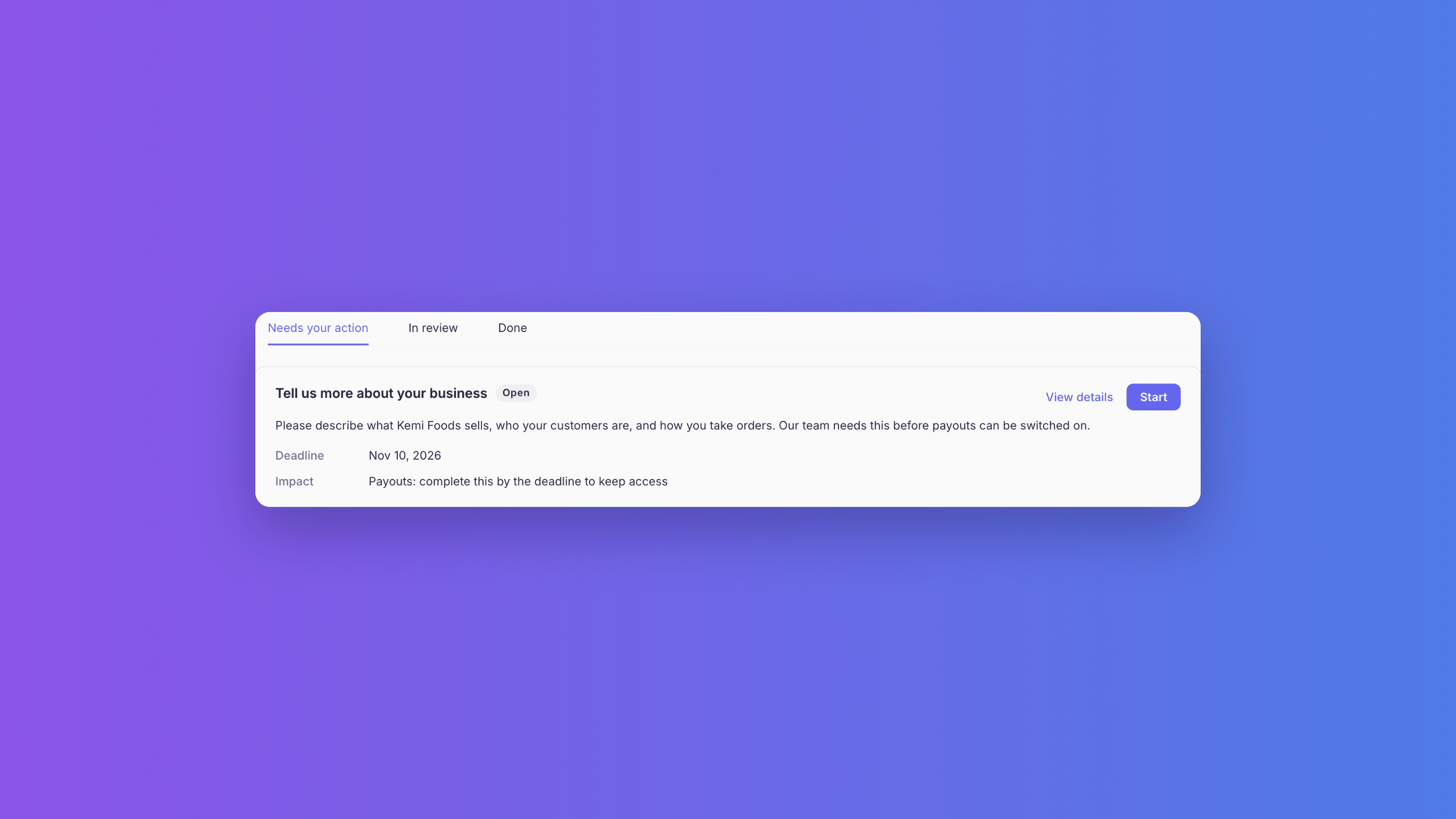
An open task under Settings > Compliance asking for more information about the business, with a deadline and a note that it affects Payouts
You get an email when the capability turns on. For a payment method, switch it on in its row so customers see it at checkout. Until then, it says In review, or Needs info if we added a task.

If we turn something off

It shows Turned off. You may get an email from us explaining why. To ask us to look again, click Request review on the row. For payouts, go to Balances > Withdraw > Enable payouts.

Next steps