

Quick start
How it works
1
Create a checkout session (server-side)
Your backend calls the Bachs API with your secret key and gets back a
checkout_url. The amount and currency are fixed here, on your server.2
Open the overlay (browser)
Your frontend loads
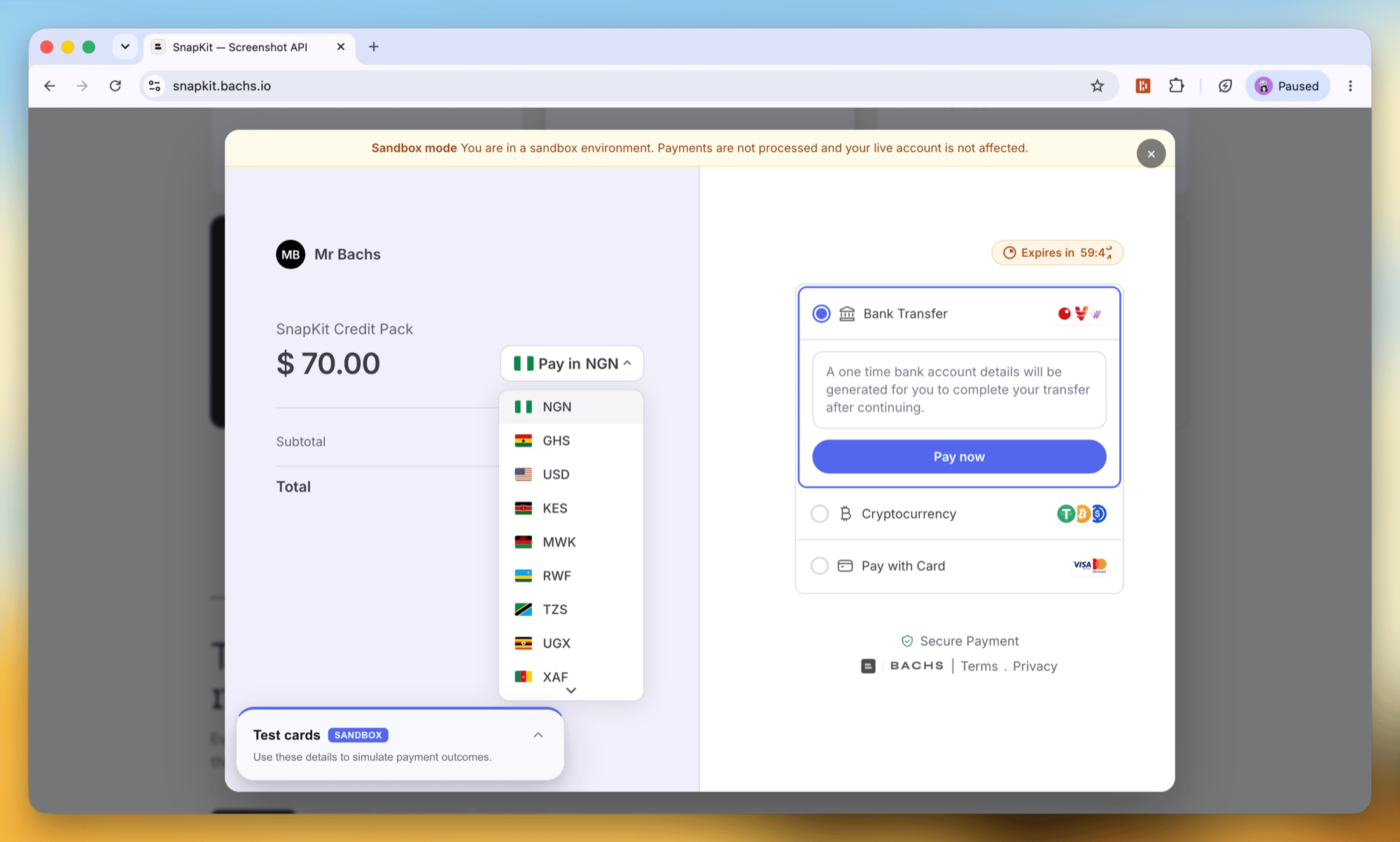
bachs.js and calls Bachs.Checkout.open() with that session. The customer pays in the modal.3
Fulfil on the webhook
Bachs sends the
checkout.completed and collection.succeeded webhooks to your server. Those, not the browser, are your signal to grant access or ship the order.Before you start
- A sandbox API key (
sk_sandbox_...). Keep it on your server. See Authentication. - At least one product to sell. See Create a product.
- A webhook endpoint to confirm payments. See Set up webhooks.
Steps
1
Create a checkout session on your server
Call
POST /v1/checkout-sessions from your backend with your secret key, exactly as in Accept a payment. You get back a checkout_url. Return it to your frontend.2
Add bachs.js to your page
Add the SDK with a script tag, or install the npm package if you use a bundler (Vite, Next.js, webpack). Both load the same overlay.With the script tag, the SDK is available as the global
Bachs. With the npm package, import the loader:npm import
3
Initialize the SDK
Initialize once when your app loads, not on every click. Pass a global There is no test/live switch on the SDK. A checkout session already carries its environment: a session created with a sandbox key is a sandbox checkout, and its
onEvent handler for checkout lifecycle events.checkout_url says which checkout serves it. Pass that URL through and the client works the same in every environment. Only if you open bare tokens with open({ token }) do you point the SDK somewhere with baseUrl (the sandbox checkout origin while you build).4
Open the overlay
On a button click, fetch a fresh You can pass the whole
checkout_url from your server, then open the overlay with it. open() returns a promise that resolves once the modal is mounted.checkout_url as checkoutUrl, or only its token segment as token. A checkoutUrl must be on your Bachs checkout origin; the SDK rejects any other host.Handle checkout events
Pass anonEvent callback to Initialize (global) or to open (this checkout only). Each event is { type, data }. These events drive your UI, not fulfilment.
Fulfil the order with a webhook
The overlay tells you when a payment succeeds, but the browser is not the source of truth. When the checkout is paid, Bachs sends thecheckout.completed and collection.succeeded webhooks to your endpoint. Grant access or ship the order on whichever arrives first, once.
collection.succeeded
Test it
Use a sandbox key (sk_sandbox_...) and mode: "test" to run the whole flow against test-mode products without moving real funds. Open the overlay, pay with a test card, and confirm your webhook receives collection.succeeded. See Sandbox.
Go live
When you’re ready, swap one thing: create sessions with a live secret key (sk_live_...) against https://api.bachs.io. The live session’s checkout_url points at the live checkout, so the client code does not change at all. See Go live.
Methods
Bachs.Initialize(options)
Configure the SDK once, when your app loads. Returns Bachs for chaining.
Bachs.Checkout.open(args)
Opens the overlay. Returns a promise that resolves once the modal is mounted and rejects on a bad token or a checkoutUrl from the wrong origin.
Bachs.Checkout.close() and Bachs.Checkout.isOpen()
Close the overlay programmatically, and check whether it is currently open.
How the overlay stays secure
- No card data on your page. The card form lives in the Bachs iframe on
checkout.bachs.io. Your site and the SDK never see the card number, CVV, or PIN. - Server-set amounts. The token references a session whose amount and currency were fixed on your server. The browser cannot change what the customer pays.
- Origin-locked messaging. The SDK only accepts messages from the exact Bachs checkout origin it loaded, and only from its own iframe. Anything else is ignored.
Overlay or hosted page?
Both run the same checkout session; they differ in where the customer pays.
The live demo has a toggle that opens every scenario both ways, on identical sessions.
Troubleshooting
The overlay does not open
The overlay does not open
Check the browser console for a
checkout.error event. The usual causes: the SDK was not loaded before calling open(), the token is invalid, or the checkoutUrl is on a different origin than the SDK expects (set baseUrl to match where the session was created).Events are not firing
Events are not firing
Confirm
onEvent is set in Initialize() or passed to open(), and that no other message listener on your page stops propagation. Events only flow while the overlay is open.The overlay is blank
The overlay is blank
The session is probably expired or the token malformed; create a fresh session and open it promptly. Sessions default to a 60 minute lifetime.
Next steps
- Live demo: click through every scenario on this page against the sandbox.
- Accept a payment: the full checkout session flow the overlay opens.
- Set up webhooks: receive and verify
collection.succeeded. - The checkout session object: every field the API returns and accepts.