

Two ways in
Both produce the same thing: an authenticated session for one specific customer, and a URL that opens it.- From your app. Call Create a portal session for a customer you’ve already signed in, then redirect them. They never see a Bachs login.
- From the dashboard. Open a customer and click Copy portal link. That mints a session exactly as the API does, and hands you the link.
How a session works
1
You create a session for one customer
A session is scoped to a single customer at a single point in time. Creating one is an authenticated action on your side: you’re vouching that this person is that customer.
2
You send them the URL
Redirect them to it, or hand it over however you like. The URL carries its own credential, so it works on any device. A customer can start on your desktop app and finish on their phone.
3
They manage their billing
Everything they can do is governed by your portal settings. Changes take effect immediately and emit the same webhooks as changes made through the API.
4
The session expires
Sessions are short-lived by design. After one lapses, the customer sees an expiry page. If you’ve set a return URL, that page offers a link back to your site; otherwise it explains that the session ended. Create a new session whenever you need one. There’s no limit, and no requirement to reuse an old one.
What your customers can do
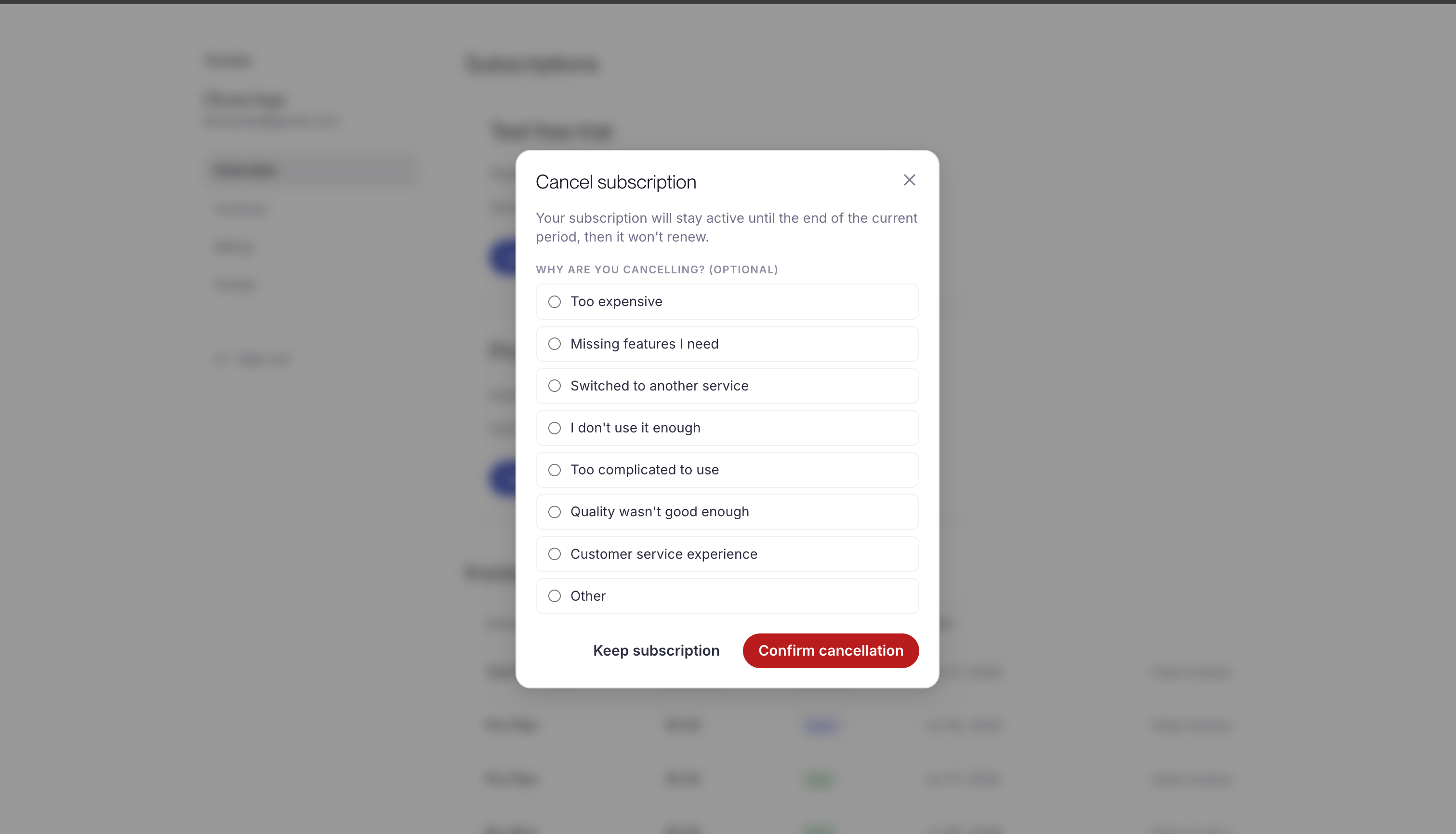
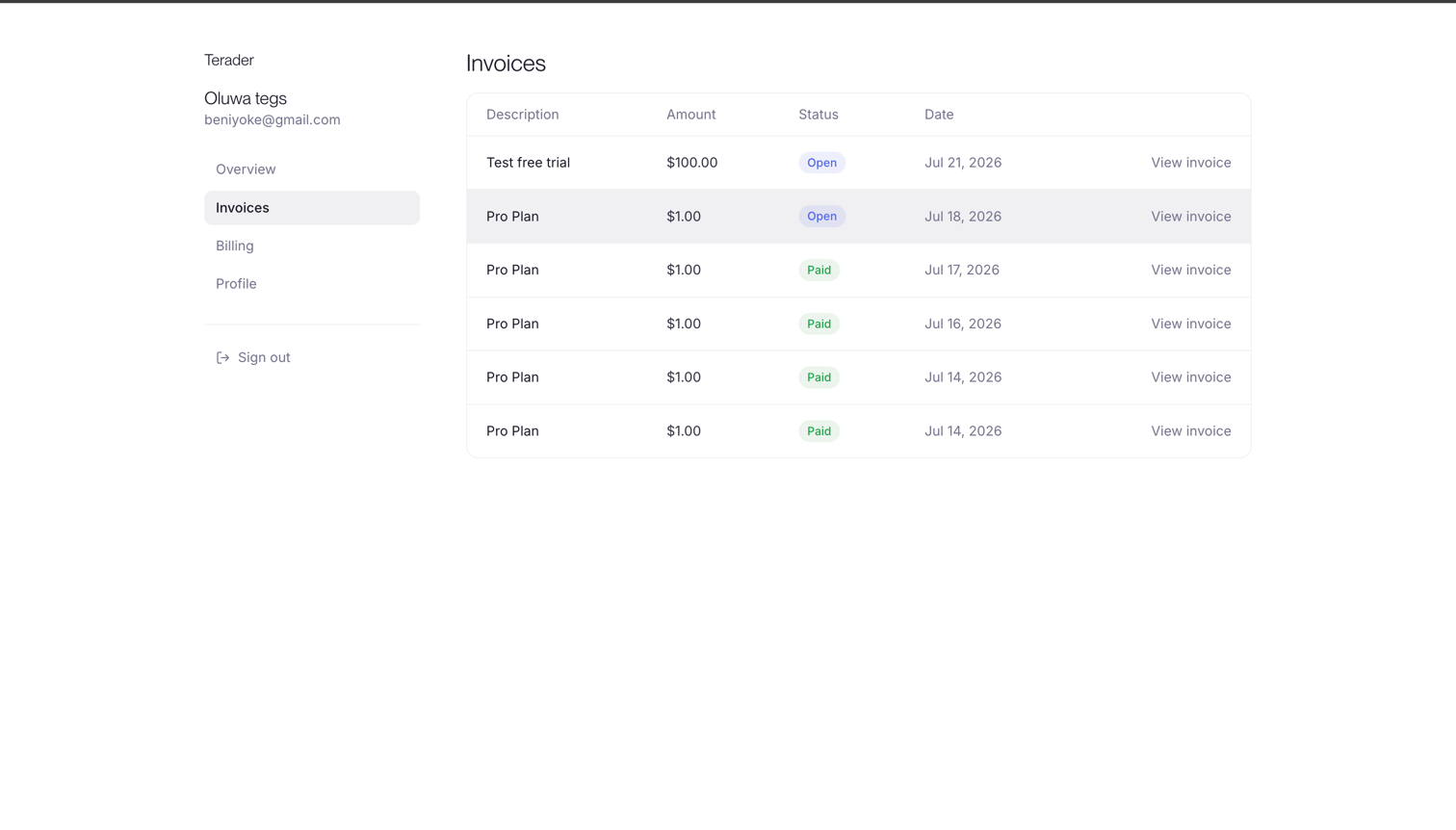
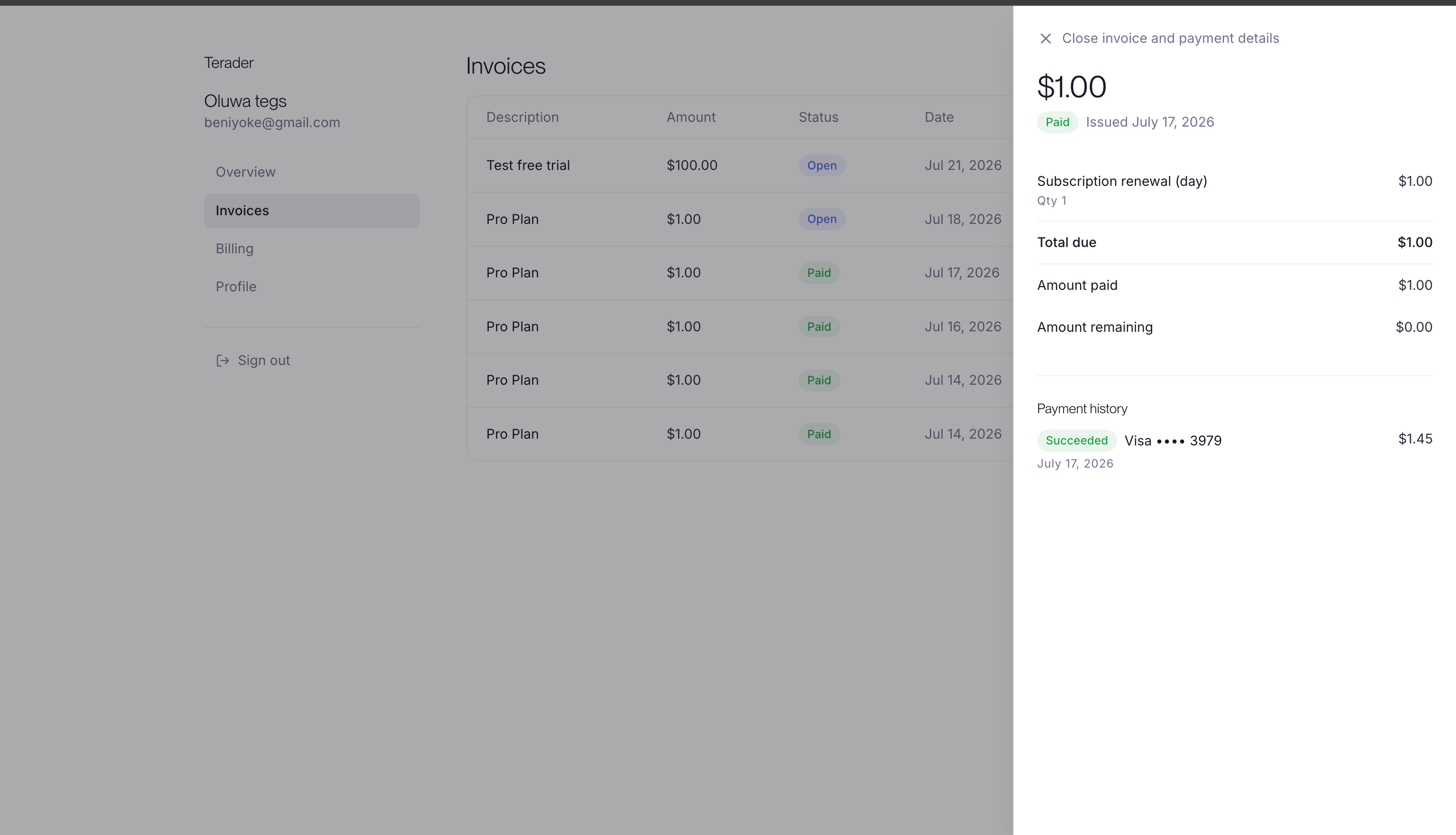
The portal has four sections: Overview for subscriptions, Invoices, Billing for saved cards, and Profile for contact details. Every capability below is individually controlled by your portal settings. Defaults are noted.Subscriptions
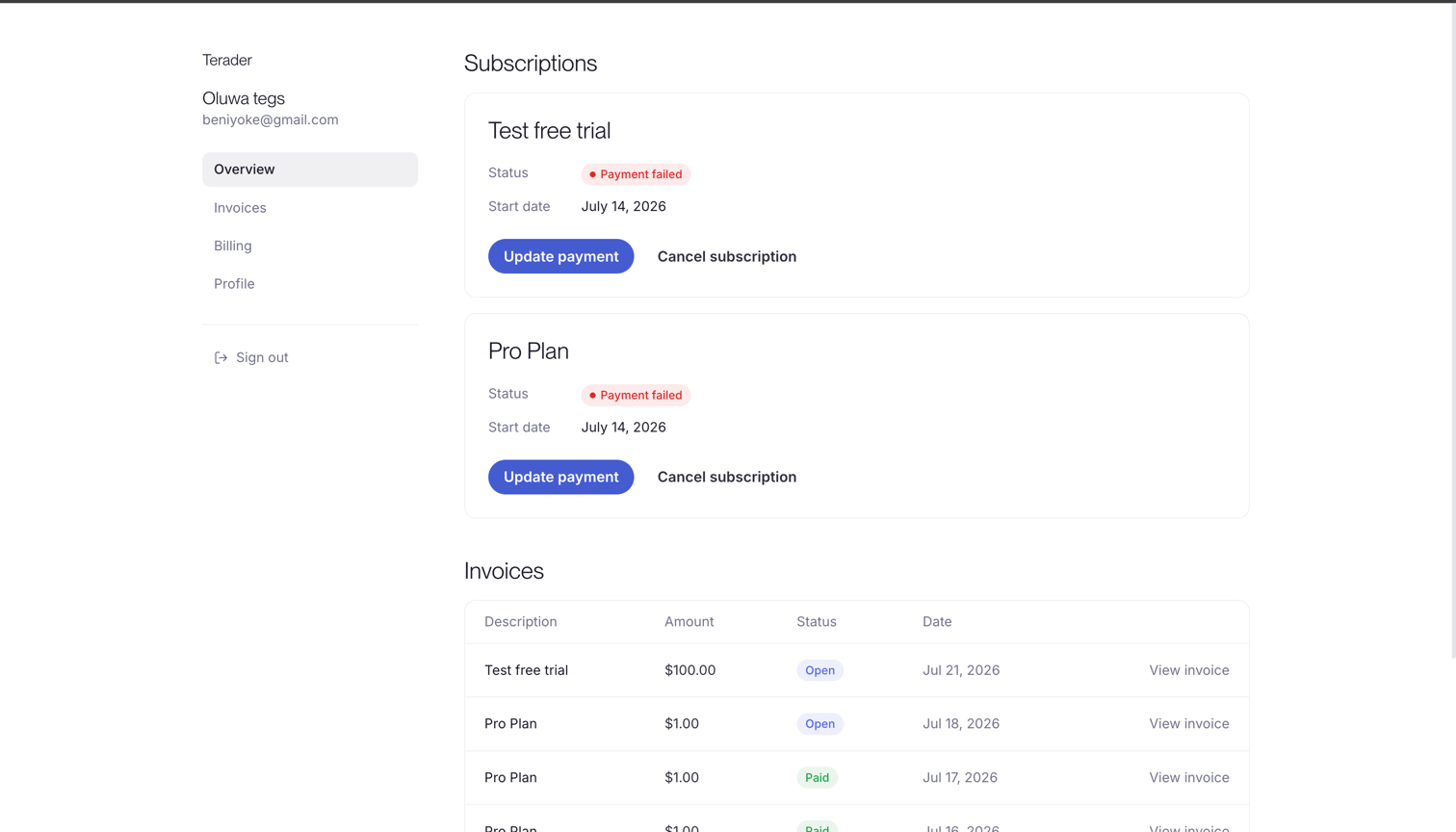
Customers see each subscription with its plan name, price, billing cadence, renewal or trial-end date, and the card that pays for it.
Subscriptions sit on Overview, the page a customer lands on, each with the actions your settings allow.
Invoices
Payment methods
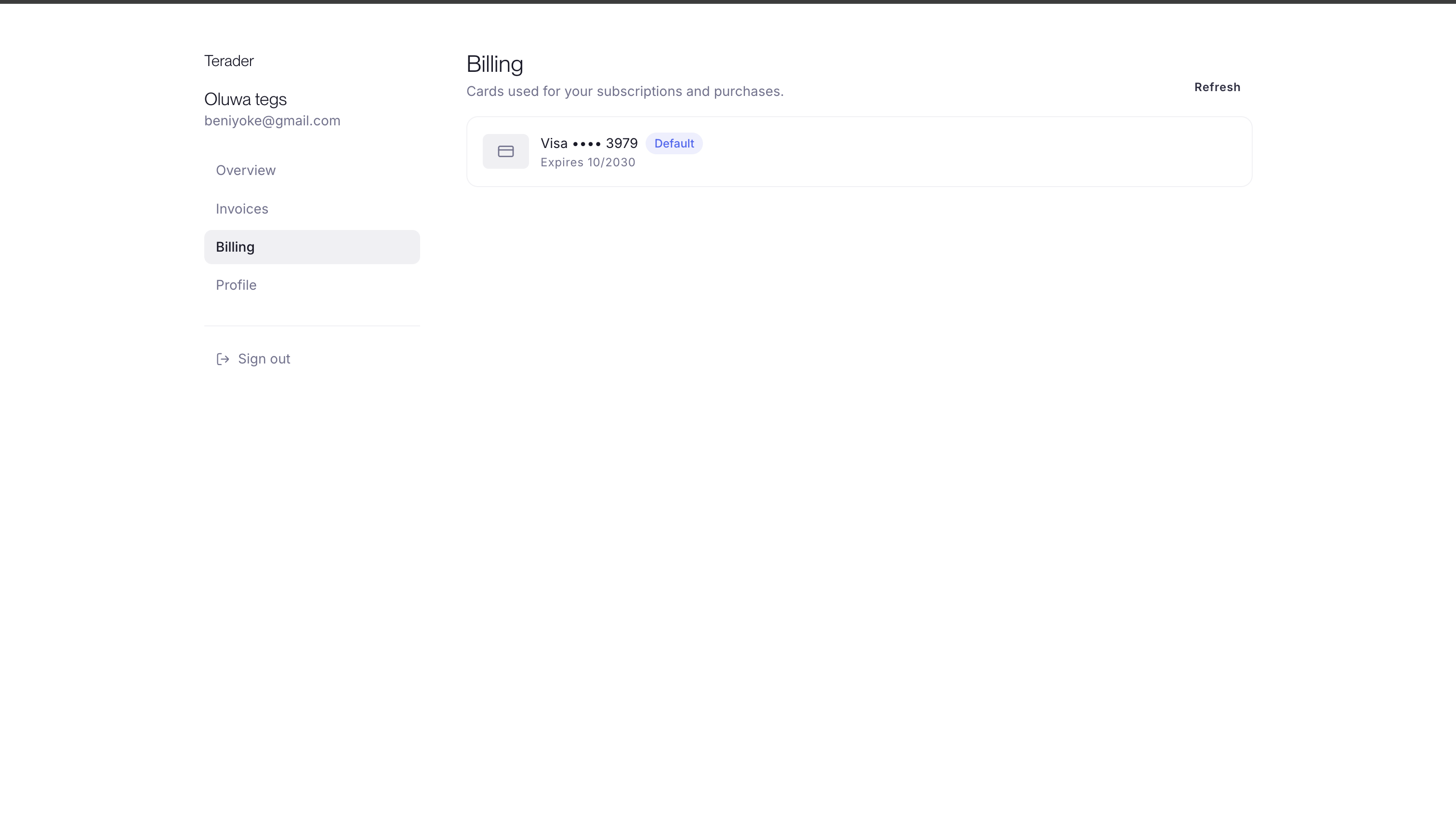
Saved cards are always visible to the customer they belong to: brand, last four digits, expiry, and which one is the default. Expired cards are flagged.
Adding a card opens a secure hosted page. Nothing is charged. The card is saved for future billing, and the customer chooses whether it becomes their default. Their first card always becomes the default, so there is always something to bill.
Saving a card without a charge is supported for USD today. Where a currency has no zero-amount card-save step, the portal hides the “add card” action rather than quietly turning it into a payment the customer didn’t agree to.
Recovering a failed payment
When a subscription ispast_due or unpaid, the portal shows the amount outstanding and a button that opens a hosted page to pay it with a new card. This is the same recovery flow the automated dunning email links to. See Payment recovery.
Contact details
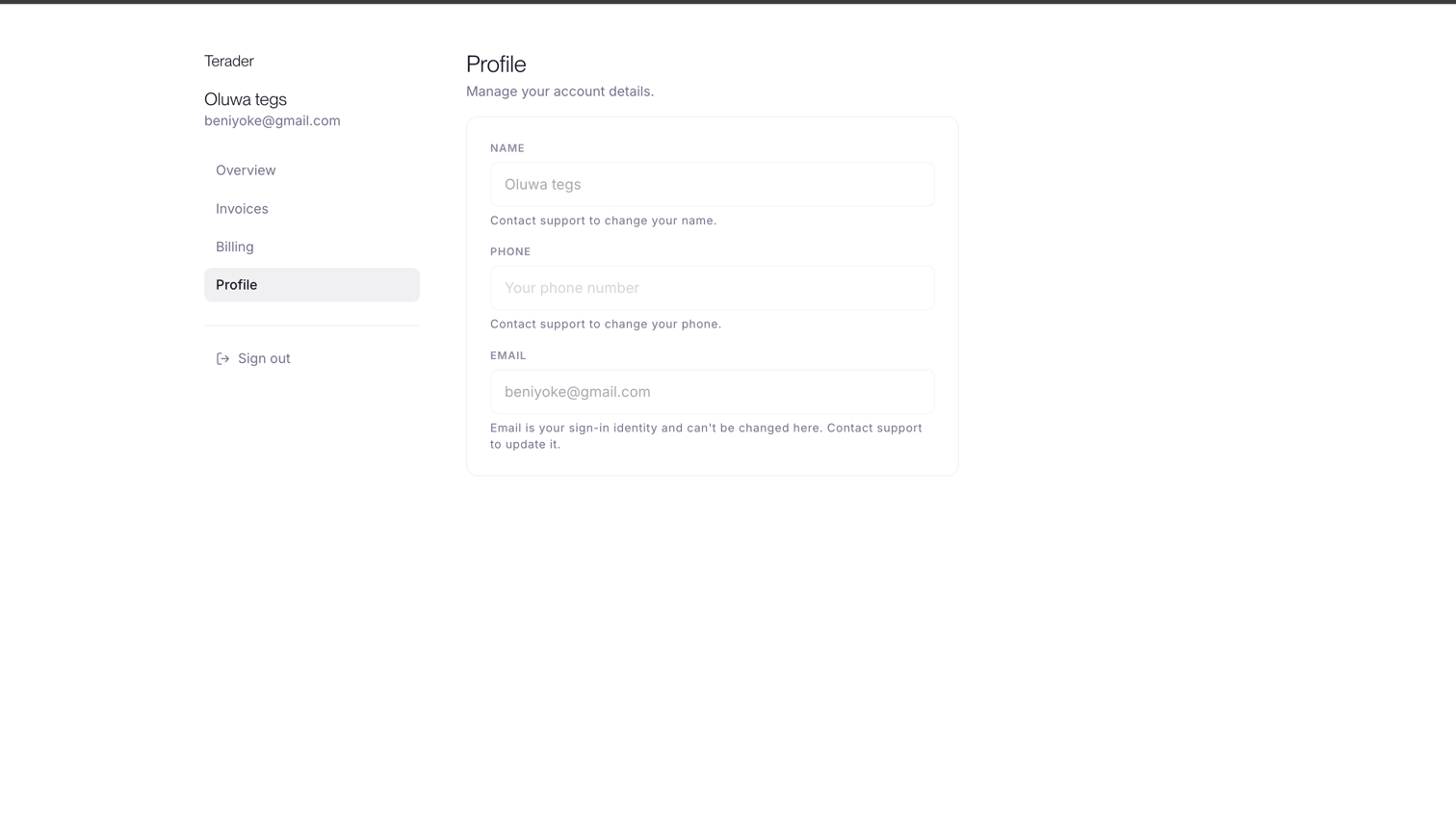
Email is deliberately not editable. It’s the identity the customer signs in with, and changing it in a self-service page is an account-takeover path.
Where you haven’t opened a field for editing, the portal shows it locked and points the customer at your support channel rather than hiding it.
Configuring the portal
Portal settings live in your dashboard. There is no “enable portal” switch: the portal exists for every live account, and the settings decide what it does.
Settings apply the moment you save them, including to sessions that are already open.
The login page
Your portal has a login URL, shown with a copy button under Settings > Customer portal. A customer opens it, enters their email, receives a one-time code, and lands in the same portal an API-created session would have opened. It’s the link to put in a footer, a receipt email, or a “Manage my billing” menu item. Every account has one. It’s generated for you, and you don’t need to do anything to switch it on. Turning the login page off closes that route without affecting API or dashboard sessions.The login URL is available in the dashboard only. It isn’t returned by the API, so copy it from your settings when you need it.
Opening the portal from the dashboard
You don’t need to write any code to use the portal. Go to Customers, open the customer, and click Copy portal link. That creates a session for them and copies the URL to your clipboard, ready to paste into a reply.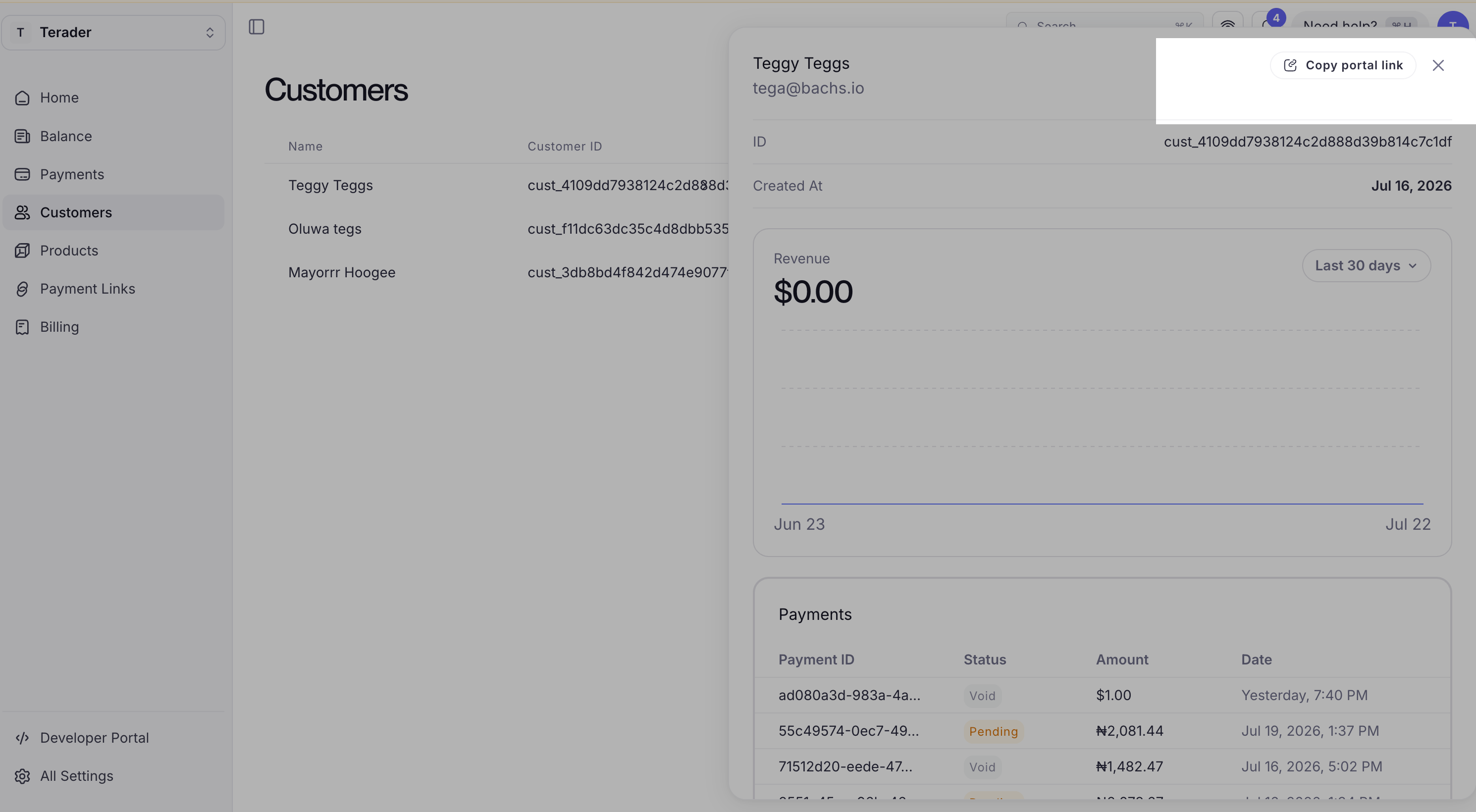
What happens in your system
Portal actions are not a side channel. A cancellation, plan change, or card update made in the portal is the same operation as the equivalent API call, and it emits the same webhooks:customer.subscription.updatedwhen a plan changes, or a cancellation is scheduled or reversedcustomer.subscription.deletedwhen a subscription is canceledinvoice.paidwhen a recovery payment succeeds
FAQ
Do I need to build a login for my customers?
Do I need to build a login for my customers?
No. If you already know who the customer is, create a session through the API and redirect them, and they’re signed in on arrival. If you’d rather not involve your app at all, use the login page and let them sign in with an emailed code.
Can a customer see another customer's data?
Can a customer see another customer's data?
No. A session is bound to one customer. Every read and write is scoped to them.
What happens when a session expires?
What happens when a session expires?
The customer sees a page explaining that the session ended. If you’ve configured a return URL, that page links back to your site so they can start again from somewhere they trust. Sessions are short-lived and are not renewed in place, so create a new one.
Can I reuse a portal URL?
Can I reuse a portal URL?
While it is live, yes, and on any device. After that it’s dead. Don’t store portal URLs, and don’t reuse one across requests: create a fresh session each time a customer asks to manage their billing.
Does the portal handle card data?
Does the portal handle card data?
Your systems never see card details. Adding or replacing a card opens a secure hosted page, and Bachs stores a reusable reference to the card, not the number.
Next steps
- Create a portal session mints a session for a customer and returns the URL to redirect them to.
- Payment recovery covers how a failed renewal is retried, and the hosted card-update flow the portal shares.
- Manage subscriptions is the API equivalent of what a customer does in the portal.