

LAUNCH20 on the hosted checkout page and pay less, and you can see which code they used.
Discounts and promo codes
There are two objects. If you have used coupons on other payment platforms, the model will feel familiar.- A discount says what the buyer gets: a percent off, or a fixed amount off. It always comes off the whole order. Its ID starts with
discount_. - A promo code is the text a buyer types to get a discount, such as
LAUNCH20. It also holds the rules: when the code works, how many times it can be used, and who can use it. Its ID starts withpromo_.
LAUNCH20 code that ends on Friday and a FRIENDS20 code that only works once per buyer.
A discount never changes after you make it. So every code on it always gives the same discount.
The buyer pays the lower price. You are paid for what the buyer pays, not for the full price.
Before you start
- To make discounts and codes with the API, an API key with the
discounts:writepermission. To read them,discounts:read. See Permissions. - To create checkouts, an API key with
payments:write. See Accept a payment with Checkout.
Make a discount in the dashboard
1
Open the Discounts tab
Go to Products and open the Discounts tab. Click Create discount.
2
Say what the buyer gets
Give the discount a Name, such as “Launch week”. Buyers see the name when you put the discount on a checkout without a code.Under Discount, pick one:
- Percent: enter the Percent off.
- Fixed amount: enter the Amount off and its currency. To set the amount in more currencies, click Add a price in another currency. See Other currencies.
3
Add promo codes
Type the code under Code, such as
LAUNCH20. For each code you can also set:- Ends on a date: the last day the code works. It works until the end of that day, in your own time.
- Limit how many times it can be used: the total number of uses, for all buyers together.
- Once per customer: each buyer can use the code once.
- New customers only: only buyers who have never paid you before.
4
Create it
Click Create discount. The discount and its codes are saved together. If any code can’t be saved, nothing is saved. When the problem is a code whose text another active code already uses, the form marks that code.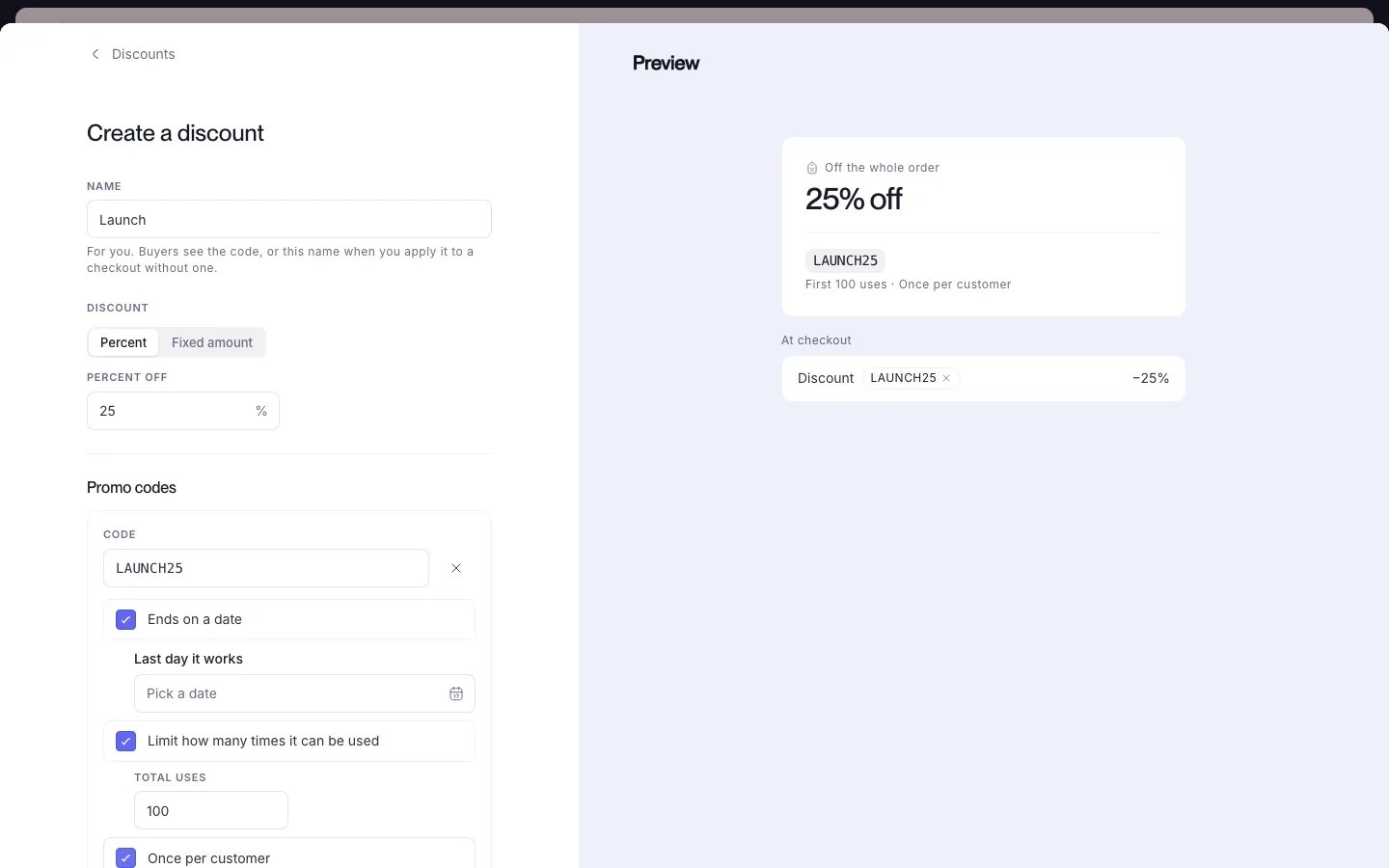
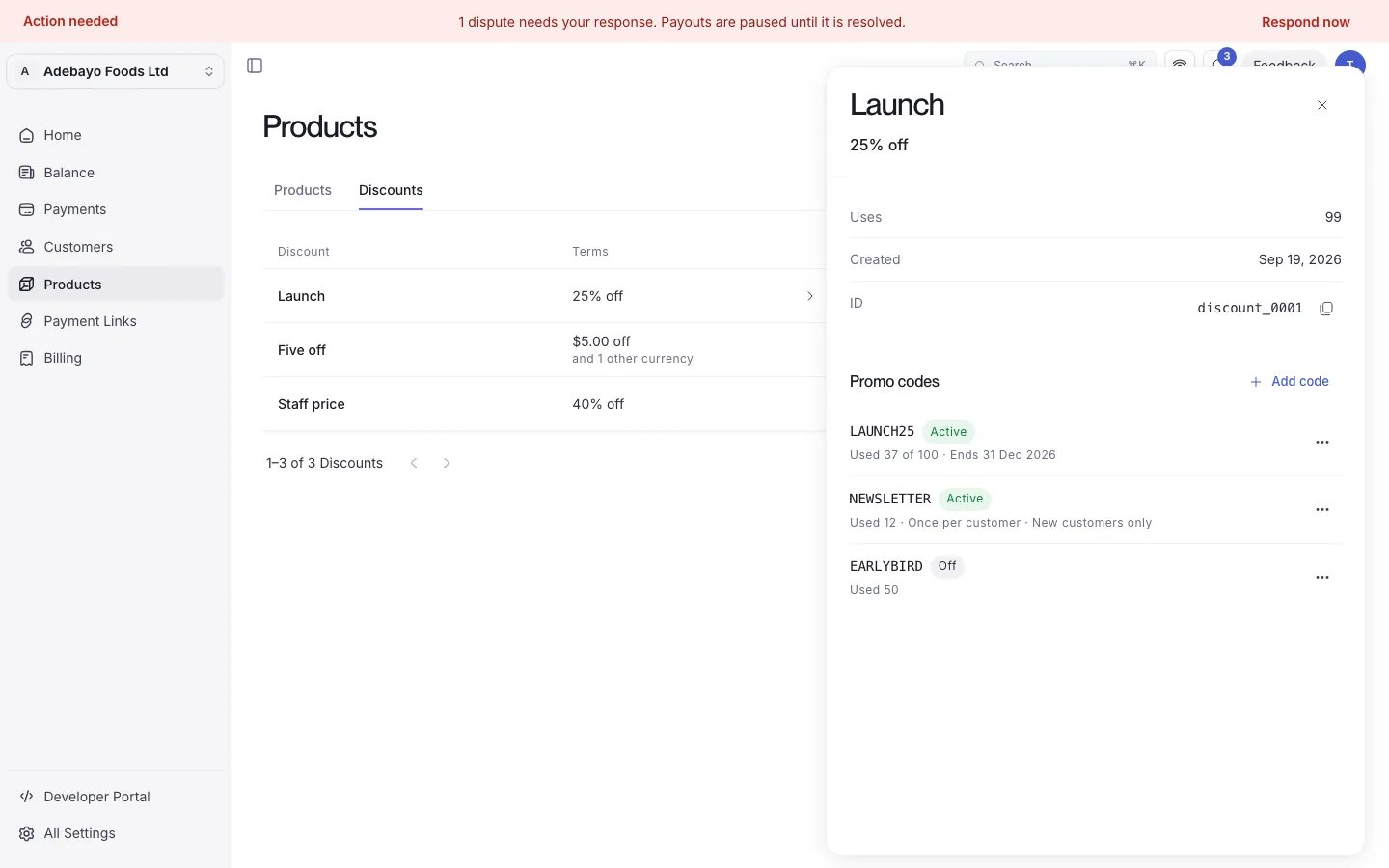
- Active: buyers can use it now.
- Scheduled: it has a start time that has not come yet.
- Expired: its end date has passed.
- Used up: it has reached its limit of uses.
- Off: you turned it off.
Make a discount with the API
The examples use the sandbox, so no real money moves. The Node.js and Python SDKs don’t have discounts yet, so the examples are cURL only.1
Create the discount
Send either The rules for a discount:
percent_off, or amount_off with currency. Not both.name: 1 to 255 characters.percent_off: above 0 and at most 100, with up to 2 decimal places.12.5means 12.5% off.amount_off: above 0, as a decimal string, with no more decimal places than its currency has. It needs acurrency.currency_options: only withamount_off. The fixed amount in other currencies, such as{"NGN": "12000.00"}. Don’t repeat the maincurrencyhere.- Each currency must be one you can price a checkout in. Crypto currencies are not accepted.
2
Create a promo code for it
Pass the discount’s ID and the code buyers will type. Every other field is optional.The fields of a promo code:
code: what the buyer types. 3 to 64 characters: letters, digits,-or_. Buyers can type it in any case. It is saved in capital letters, solaunch20becomesLAUNCH20.starts_at: the code does not work before this time.expires_at: the code stops working at this time. It must be in the future, and afterstarts_at.max_redemptions: the total number of uses, for all buyers together.max_redemptions_per_customer: how many times one buyer can use the code.first_time_transaction: whentrue, only buyers who have never paid you before can use the code.
LAUNCH20 is refused with PROMO_CODE_TAKEN. A code you turned off does not block the text.3
Turn a code off or on
PATCH /v1/promo-codes/{id} takes only active. Turning a code off stops new buyers from using it. It does not change past uses.PROMO_CODE_TAKEN if another active code now uses its text.GET /v1/discounts/{id}andGET /v1/promo-codes/{id}return one object.GET /v1/discountsandGET /v1/promo-codeslist them, newest first. They uselimitandcursorlike other lists. See Pagination.
discount_id.
You can’t delete a discount or a promo code. Turn the code off instead.
Put a discount on a checkout
POST /v1/checkout-sessions takes three new fields. Send at most one of them. Sending two is refused with a 422 VALIDATION_ERROR.
allow_promo_codes:trueshows the buyer a box on the hosted page to type a code.promo_code_id: you apply a code yourself. Its rules and limits still apply.discount_id: you apply a discount yourself, with no code. It has no limits and counts no uses.
- Let the buyer type a code
- Apply a discount yourself
amountis what the buyer pays, after the discount.subtotalis the price before the discount. It is the same asamountwhen there is no discount.discountisnullwhen there is none.subtotalminusdiscount.amount_offisamount.
A code you apply with
promo_code_id is checked again when the buyer pays. If it has expired or been used up by then, or this buyer has already used it, or it is for new customers and this buyer has paid you before, the buyer sees why and can remove the code to pay the full price. To give a discount with no such checks, use discount_id.What the buyer sees
When you setallow_promo_codes, the order summary on the hosted page shows Add promo code under the items. The buyer clicks it, types the code and applies it.
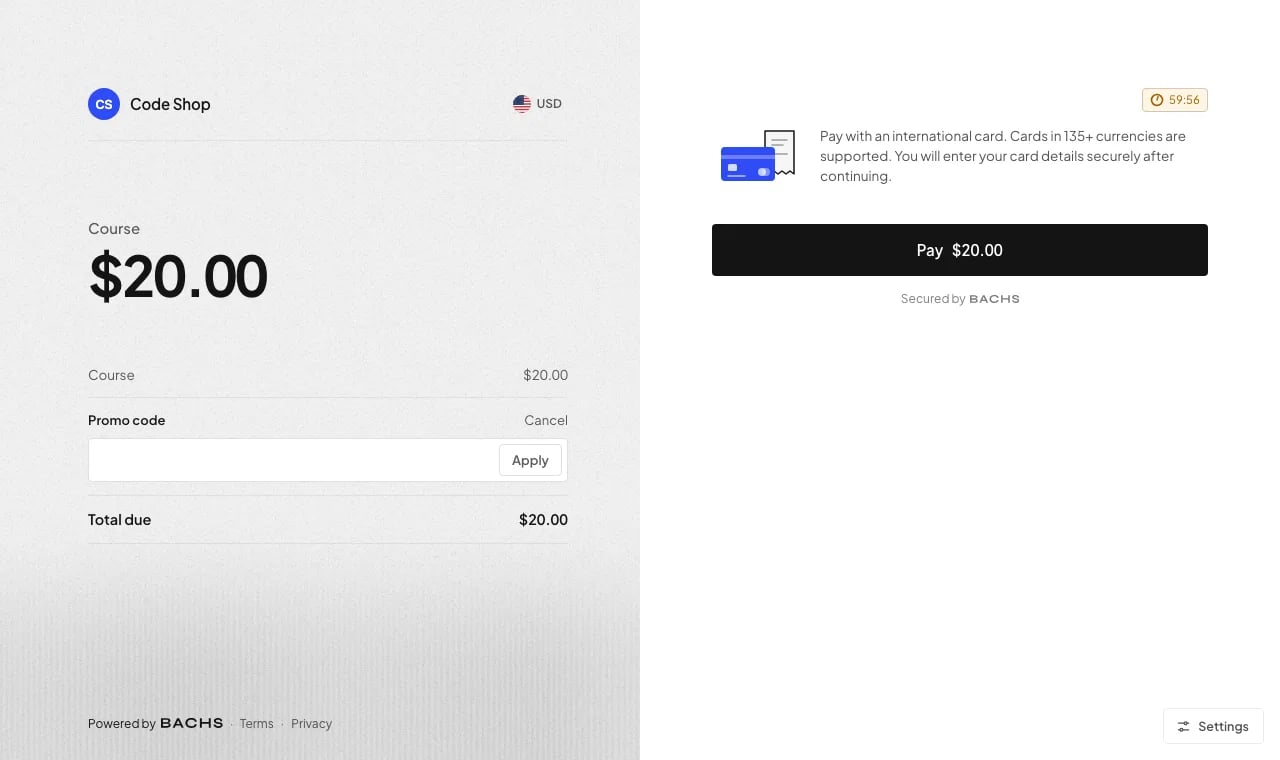
- If the code works, the discount line shows the code, the amount it takes off, and a button to remove it. The total and the pay button drop to the new price.
- If it doesn’t, the buyer sees why under the box, for example “This code has expired.” The messages are in the errors table.
- The buyer can remove the code, or type another one. A new code replaces the old one. A checkout holds one code at most.
- When you applied a discount without a code, the line shows the discount’s name instead, and the buyer can’t remove it.
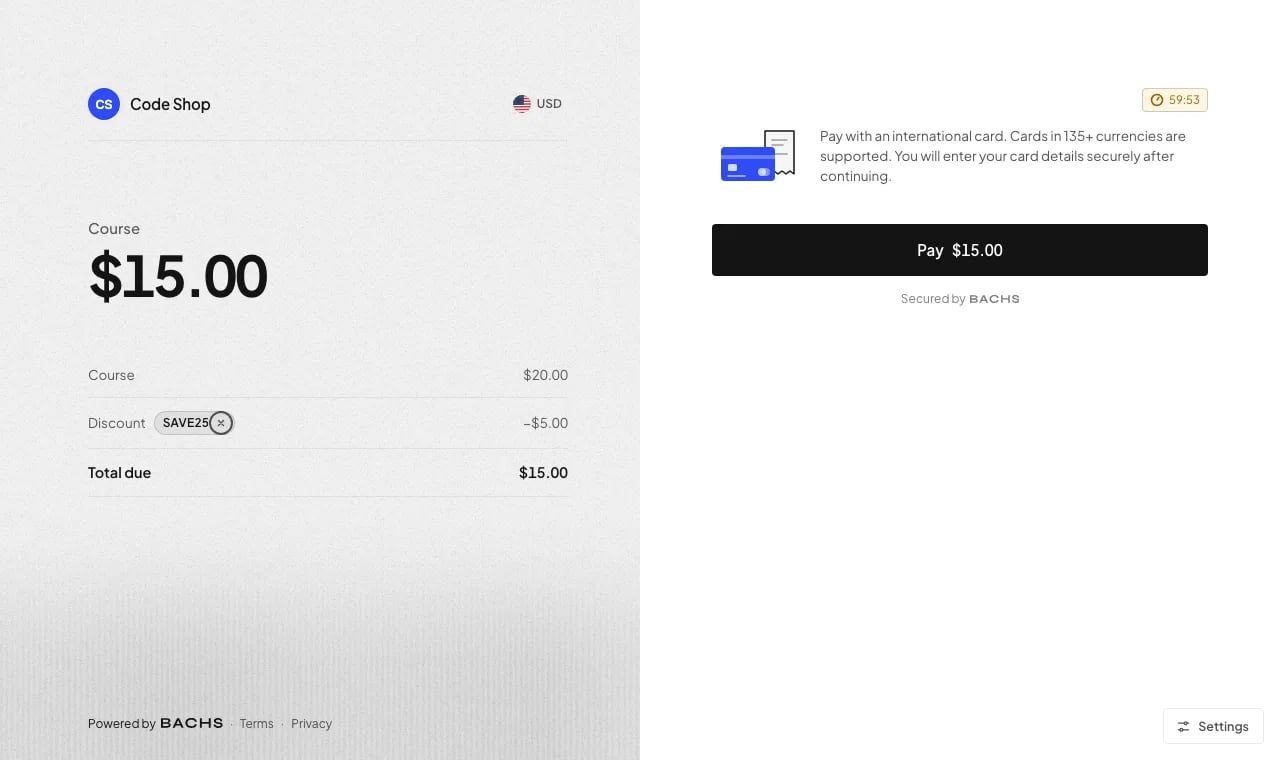
- The buyer changes the cart. The discount is worked out again on the new cart. If the code no longer fits, it is taken off and the buyer sees the full price.
- A payment is under way. The code can’t change until that payment finishes or is cancelled.
- The discount takes the whole price. A 100% discount, or a fixed amount equal to or above the price, makes the checkout free. It completes with no payment step. The
checkout.completedwebhook haspayment_status: "no_payment_required"and no charge.
Limits and how uses are counted
Only promo codes count uses. A discount you apply withdiscount_id has no limits.
A code’s times_redeemed counts its uses. Here is when it changes:
- The buyer starts to pay. A use is taken, before any money moves.
times_redeemedgoes up by one now. - The payment succeeds. The use stays.
- A payment fails and the buyer tries again. The same checkout keeps the same use. It is not counted twice.
- The buyer takes the code off or changes it. The use is given back.
- The checkout expires or is cancelled without a payment. The use is given back.
- You refund the payment. The use is not given back.
expires_in_minutes.
Some payments are slow, such as bank transfers. If one arrives after its checkout expired and gave its use back, the use is taken again, because the buyer got the discount. In that case
times_redeemed can go past max_redemptions.When each rule is checked
When the buyer applies a code, we check that it is turned on, has started, has not expired and is not used up. When the buyer pays, we check all of that again. We also check the rules that depend on who the buyer is:max_redemptions_per_customer: how many times this buyer has used the code. This counts paid uses, and uses held by the buyer’s other open checkouts.first_time_transaction: whether this buyer has paid you before.
Who counts as the same buyer
Two uses belong to the same buyer if any one of these matches:- the same customer
- the same email, ignoring capital letters and anything after a
+. Soada+shop@example.comandAda@example.comare the same buyer. - for some card payments, the same card
Other currencies
A percent discount takes the same percent off every price, in every currency. A fixed amount discount works on a checkout priced in itscurrency, or in a currency in its currency_options. On a checkout priced in any other currency, the code is refused with “This code can’t be used on this order.”
If your product also has prices in other currencies (see Local pricing), each of those prices comes down too:
- If the discount has an amount in that currency, that amount comes off.
- If not, the price comes down by the same share as the main price.
40.00 USD and has a local price of 60000.00 NGN. A discount takes 10.00 USD off, which is a quarter of the price.
- With no NGN amount, the NGN price drops by a quarter, to
45000.00 NGN. - With
"currency_options": {"NGN": "12000.00"}, the NGN price drops to48000.00 NGN.
Payment links
A payment link can offer the code box too. In the dashboard, tick Let customers use promo codes when you create or edit the link. It is off by default.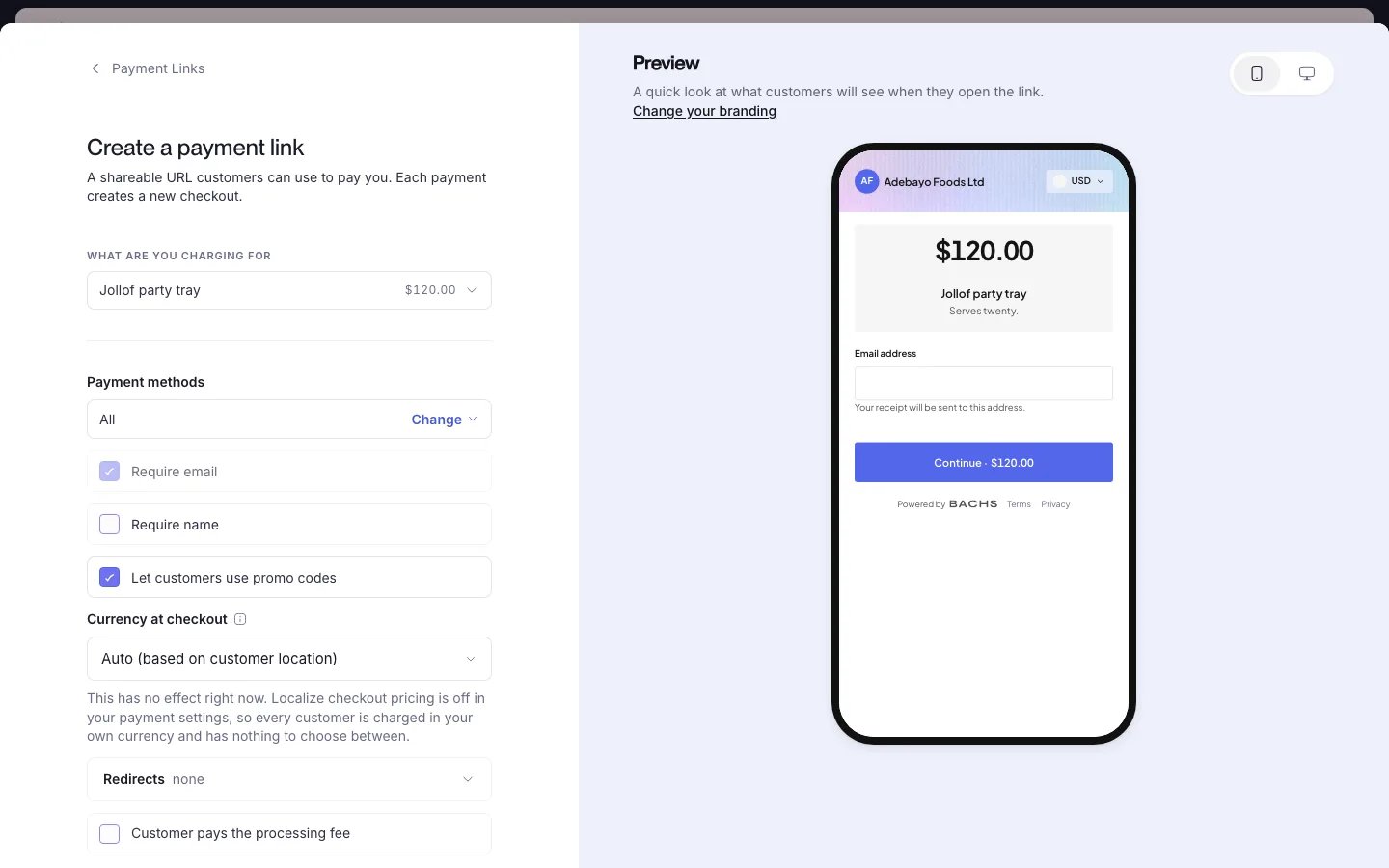
allow_promo_codes: true.
You can’t turn it on for a link that sells a subscription product. If a link’s product becomes a subscription later, its checkouts open without the code box.
GET /v1/payment_links/{id} returns the setting as allow_promo_codes.
Know when a code was used
When a buyer pays with a code, thecheckout.completed webhook tells you which code, and how much it took off:
checkout.completed
- Webhooks. The
checkout.completedevent hasdata.subtotalanddata.discount, with thecodethe buyer used, itspromo_code_id, and theamount_off.checkout.expiredhas them too. - The checkout.
GET /v1/checkout-sessions/{checkout_id}returnssubtotalanddiscount. - Receipts. The buyer’s receipt has a “Discount (LAUNCH20)” line between the items and the amount paid, so the lines add up. With no code, it shows the discount’s name.
- Use counts.
times_redeemedonGET /v1/promo-codes/{id}, and the Uses column on the Discounts tab.
What is not supported yet
- Subscriptions. A checkout with any recurring product is refused with
SUBSCRIPTION_DISCOUNTS_NOT_SUPPORTED, whichever of the three fields you send. - Discounts for some products only. A discount always comes off the whole order.
- A minimum order amount.
- Editing a discount. To change what buyers get, make a new discount with new codes, and turn the old codes off.
- Deleting. Turn a code off instead.
- More than one discount on a checkout.
- Filters on the lists. You can’t list the codes of one discount, or look a code up by its text.
Errors
Every error has the usual shape, with a stableerror_code and a detail message. See Errors.
These come from the discount and promo code endpoints:
These are refusals. The buyer sees the message on the hosted page. Your API call gets the same error when you create a checkout with a discount that is refused.
Next steps
- Accept a payment with Checkout: create the checkout a discount goes on.
- The checkout session object: every field a checkout returns.
- checkout.completed: the webhook that tells you a code was used.
- Local pricing: set prices in other currencies.